
Everything about a shop's apps is managed on the Custom apps page in POS: reviewing access and activating versions, turning apps on and off, going back to an older version, reading errors, connecting the CLI and turning on development mode.
The page is only shown to accounts with the configuration management permission, on shops where Pancake has enabled POS Apps.
Open the page
- In POS, click Settings (the gear icon in the left sidebar).
- Under Advanced, choose Custom apps.
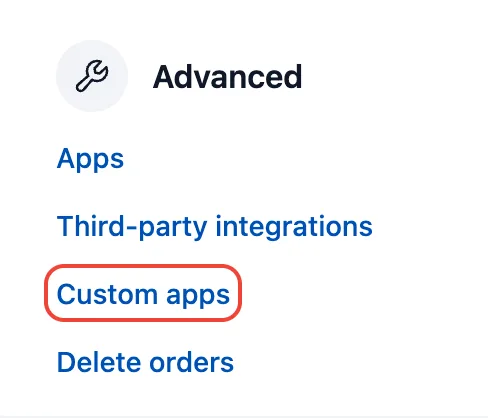
Direct link: https://pos.pancake.vn/shop/<shop id>/setting/custom-apps.
App list
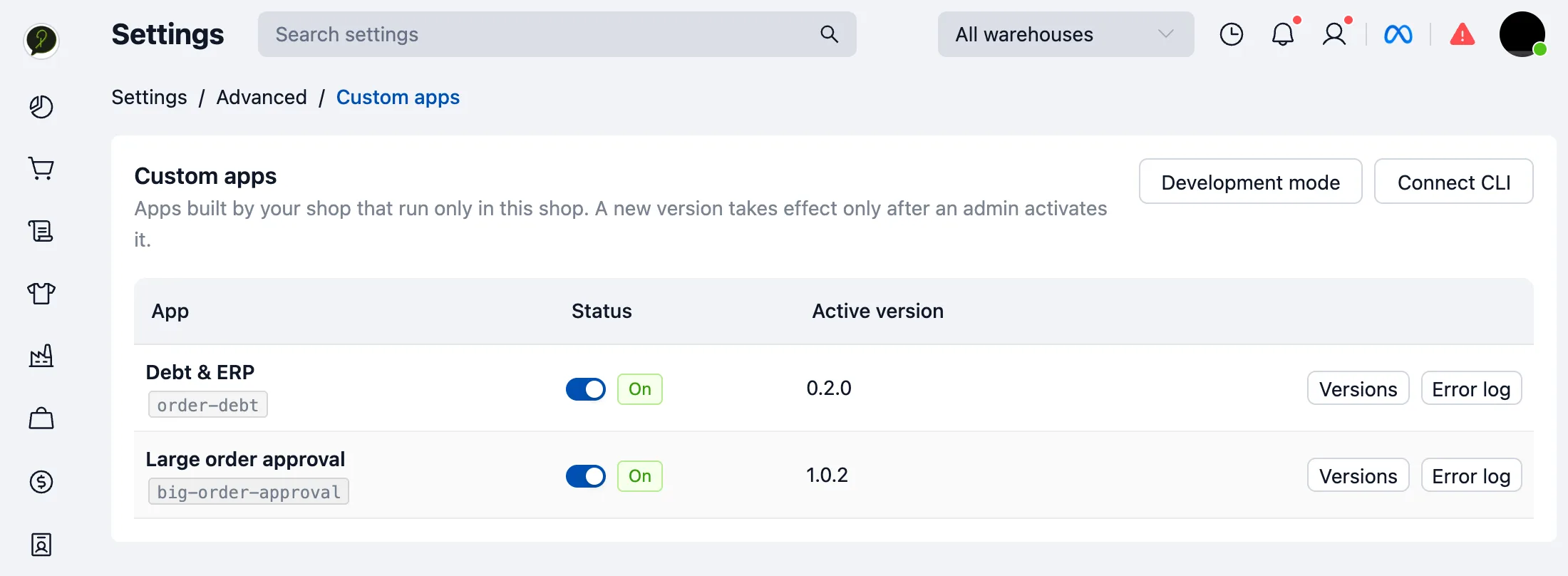
| Column or button | Meaning |
|---|---|
| App | App name and the handle from pos-app.json. |
| Status | Switch that turns the app on or off. An app with no activated version shows Review & activate instead. |
| Active version | The version everyone in the shop is using. |
| Versions | Uploaded versions; activate one or go back to an older one. |
| Error log | Runtime errors POS recorded for the app. |
| Delete app | Only shown while the app is off; deletes the app with all its versions (see Delete an app). |
| Development mode | Loads the build served by pos-app dev on your machine, in this browser only. |
| Connect CLI | Creates tokens for the pos-app command and revokes the shop's tokens. |
An app shows up in the list after its first upload (pos-app deploy or the MCP deploy tool).
Review and activate a version
Every upload creates an inactive version; users see nothing until an admin activates it.
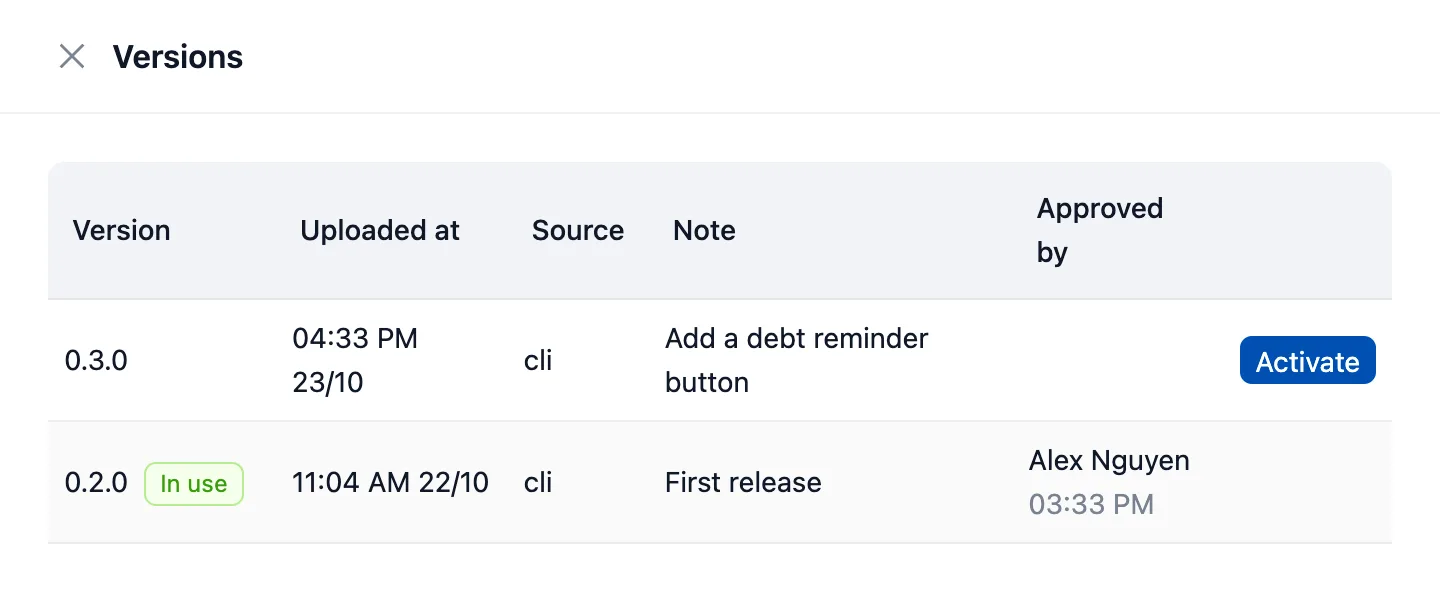
Click Versions on the app's row (or Review & activate for a new app). The list shows versions with their upload time, source (
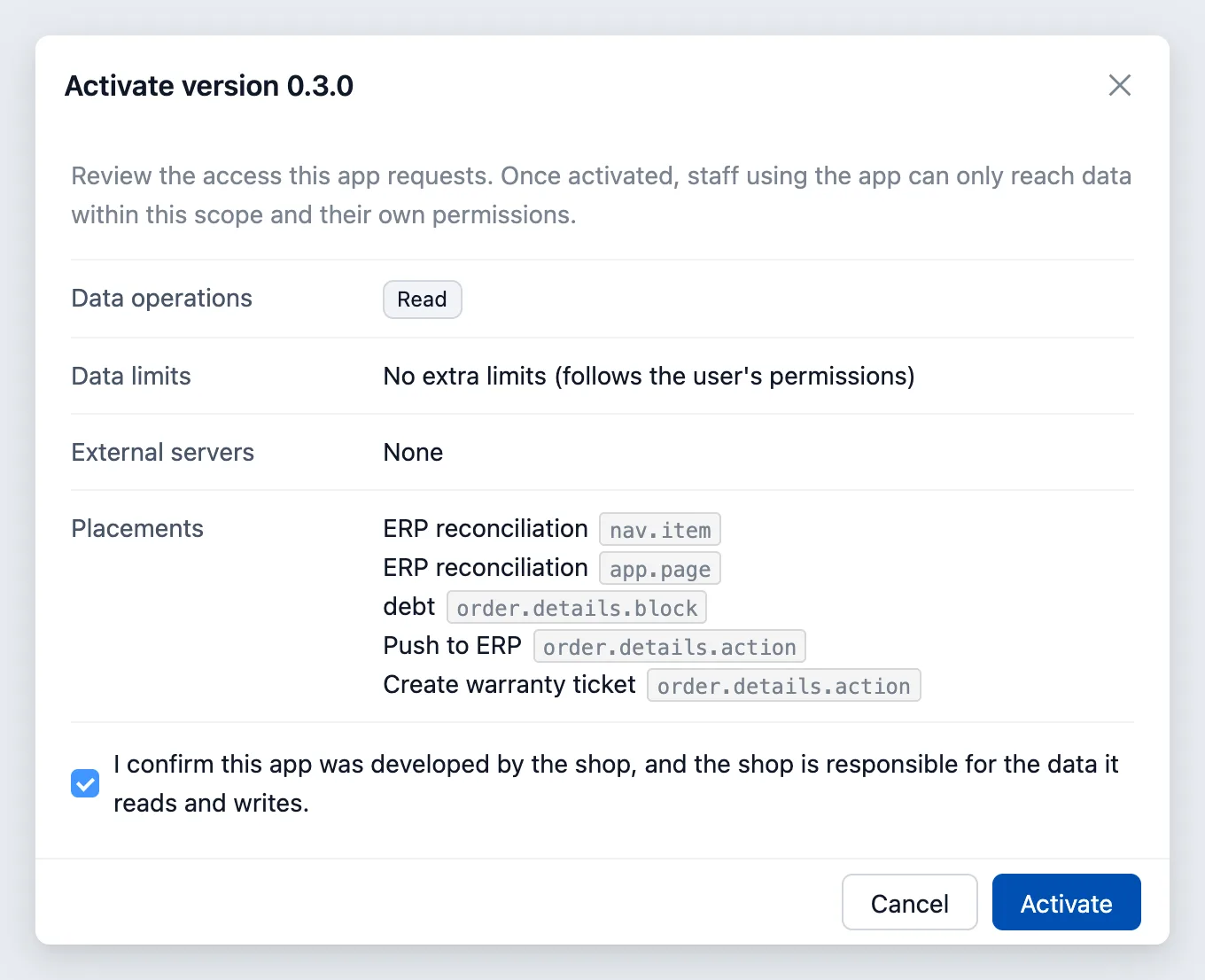
cliormcp), the note given at deploy time and who approved them. Each app keeps its latest 20 versions plus the active one; older versions are deleted when a new one is uploaded.Click Activate on the version to use. POS shows what the app asks for:
- Data operations:
Read,Create,Update,Deletefromaccess.methods. Write operations are highlighted in orange. - Data limits: warehouses, order sources, order statuses, hidden fields, product categories… from
access. Without them, the app follows the user's own permissions. - External servers: domains in
network.allowed_originsthe app may call. - Self-hosted page: the
urlof a self-hostedapp.page, if any. - Placements: each extension and its target.
- Data operations:
Check write operations and external servers carefully, tick the box confirming the app was developed by the shop and the shop is responsible for the data it reads and writes, then click Activate. POS records who approved it and when in the Approved by column. Users get the new version on their next page load.
By default every member of the shop sees the app; the data it reads and writes stays within each person's own permissions (see Data access).
Go back to an older version
Open Versions and click Activate on the older version. POS shows that version's access review again before switching.
Turn an app off and on
Use the switch in the Status column:
- Off: every extension of the app disappears from POS and its app tokens are revoked immediately. Use it when the app misbehaves badly or data may have leaked.
- On again: the app runs the activated version again, without another review.
Delete an app
Delete apps you no longer use to free up the shop's storage:
- Turn the app off with the switch in the Status column.
- Click Delete app on the app's row and confirm.
POS deletes every version, uploaded bundle and the error log of the app; this cannot be undone. An app that is on cannot be deleted. To use it again, run pos-app deploy as for a new app (the old handle can be reused).
Shop limits
- At most 10 apps on at a time. There is no limit on uploaded apps; only apps that are on count. With 10 apps on, activating or turning on another one fails with "A shop can enable at most 10 apps"; turn one off to make room.
- At most 500 MB for all apps. This is the total of the versions kept for every app, including apps that are off. Each app keeps its latest 20 versions plus the active one; older versions are deleted when a new one is uploaded. Above the quota,
pos-app deployfails withstorage_quota_exceeded; delete apps you no longer use to free space.
Other limits: Overview › Limits.
Error log
Click Error log to see errors POS recorded while the app ran on users' machines: time, extension (id in the manifest), error code and message.
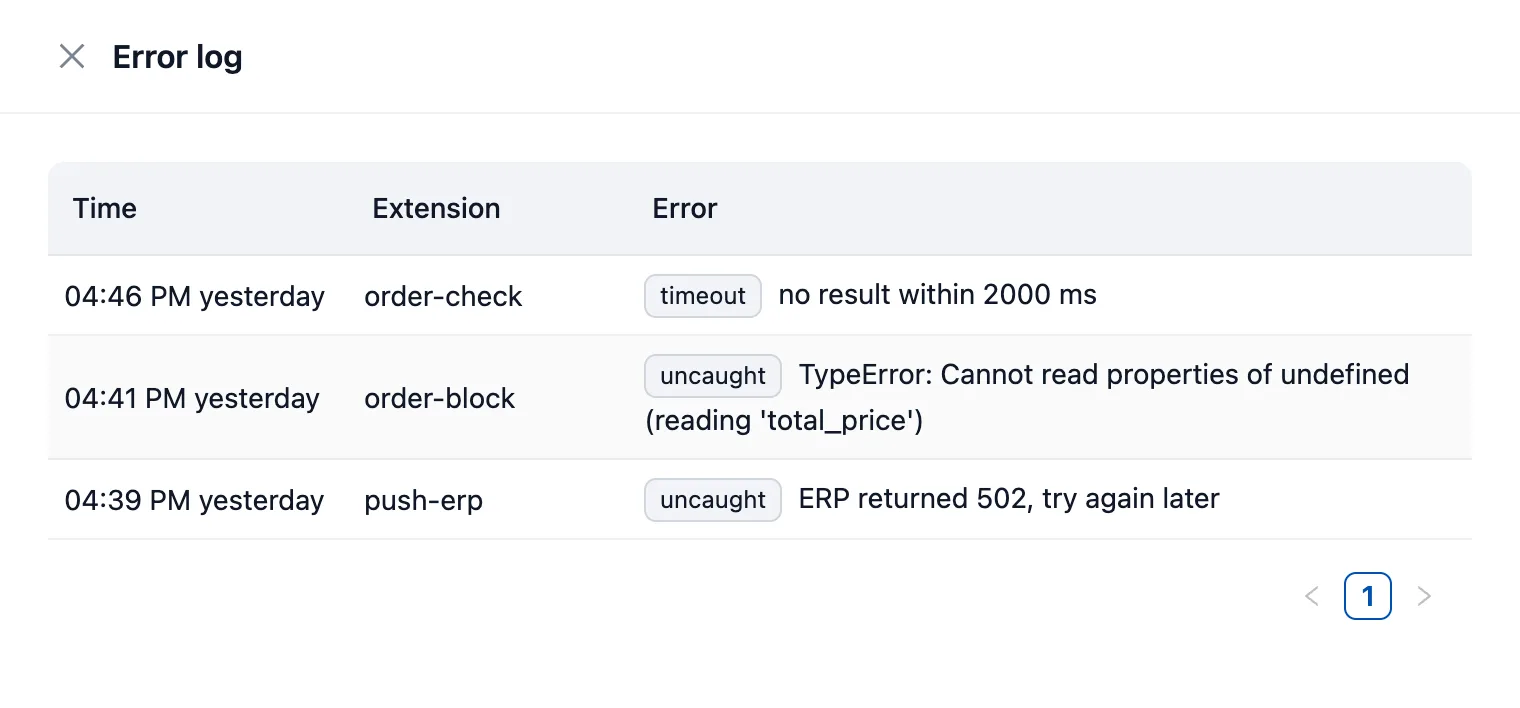
| Code | Meaning |
|---|---|
uncaught |
App code threw an error it did not catch. |
timeout |
A module did not return in time (for example before_submit over timeout_ms). |
module_timeout |
A module did not start in time. |
render_error |
POS could not draw the UI the app sent. |
hook_failed, should_render_failed, invalid_result |
A hook or should_render failed, or returned the wrong kind of result. |
frame_timeout |
The app sandbox did not load (the network blocks the sandbox domain, or the sandbox is down). |
POS keeps each app's 500 most recent errors for 7 days. Developers read the same log with the get_errors tool of the MCP server.
Connect the CLI
The pos-app command (and the MCP server) needs a token to upload apps to the shop.
- Click Connect CLI › Create token.
- Click the copy icon and run the command on your machine. The command is shown once; after closing the dialog you need a new token.
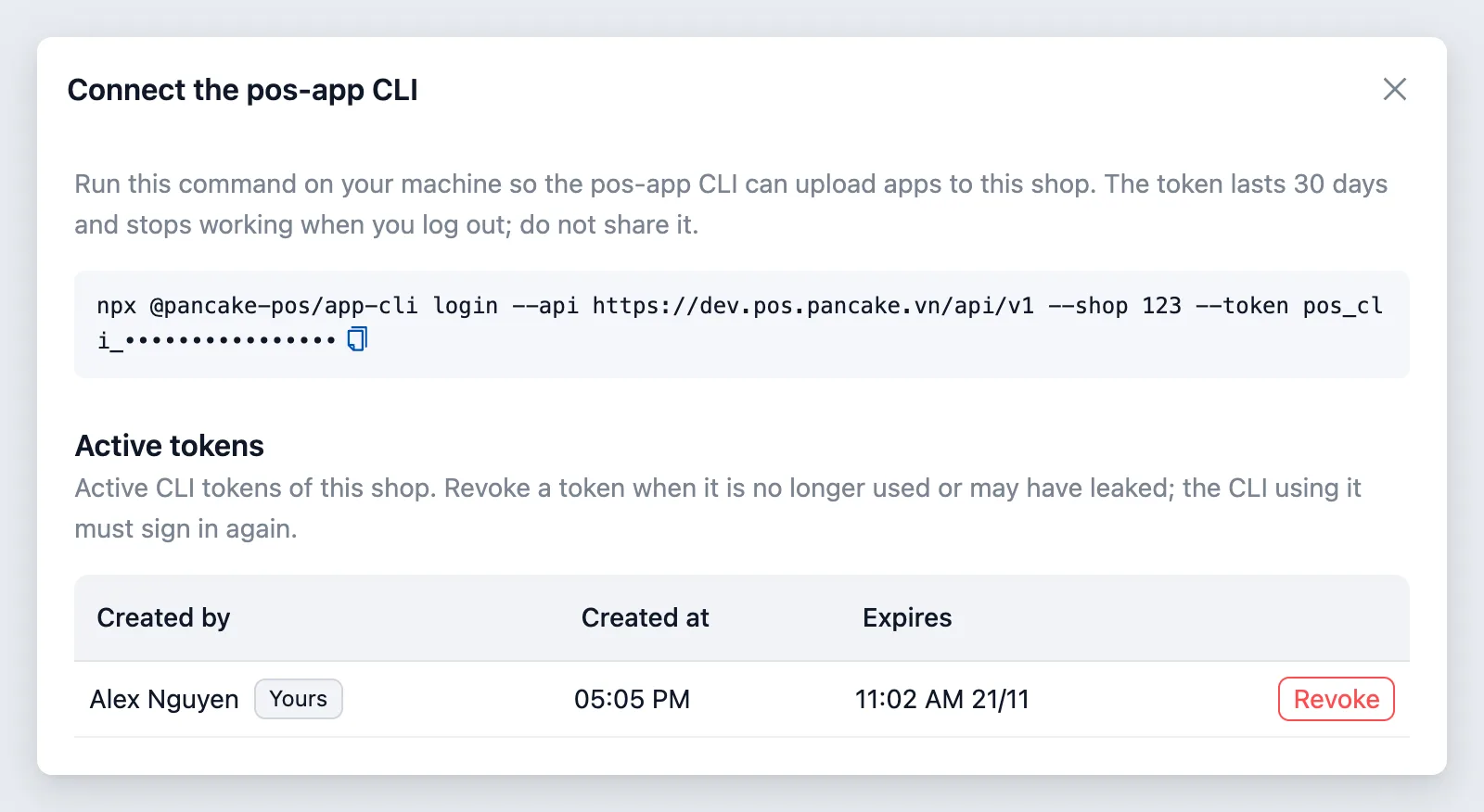
- A token lasts 30 days and stops working when its creator logs out of POS.
- A token only covers developer work: uploading versions and reading apps, versions, errors and sample data. It cannot activate a version or change shop settings.
- Active tokens lists everyone's tokens in the shop. Click Revoke when a token is no longer used or may have leaked.
pos-app logoutalso revokes the token on that machine.
Development mode
Development mode lets you try the code you are writing inside real POS without affecting anyone else.
- On your machine, run
npx pos-app devin the app folder (served athttp://localhost:5174by default). - Click Development mode, enter the Dev server address and click Enable development mode.
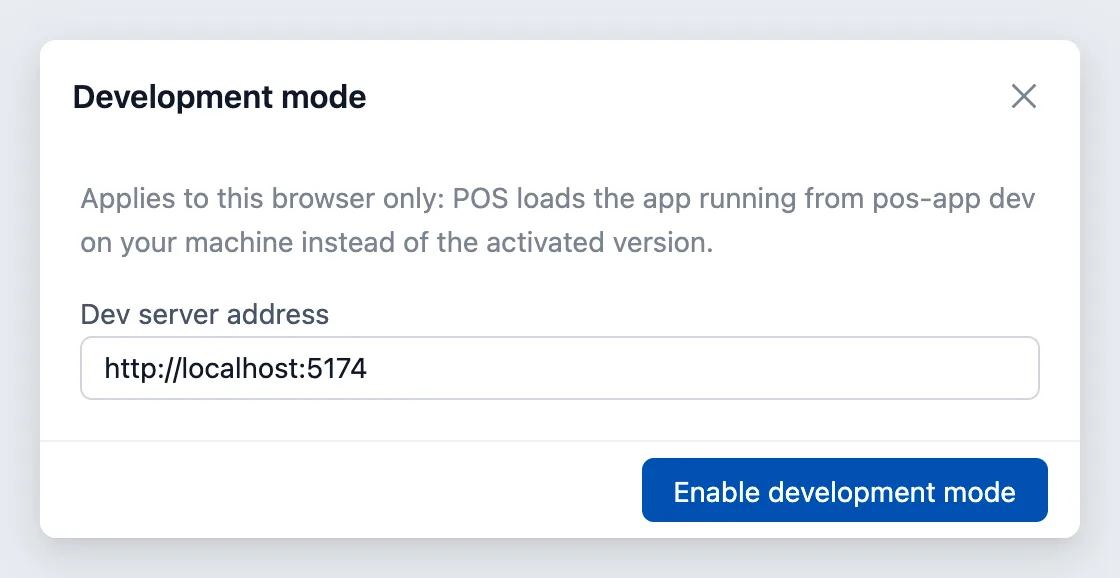
- Only this browser loads the development build; everyone else keeps the activated version.
- When you change code, POS reloads the extension without reloading the page.
- Open the dialog again and click Disable development mode when you are done.
Details and notes about real data: Getting started › Try it inside POS.
FAQ
I cannot find Custom apps. The account lacks the configuration management permission. If it has the permission and still cannot see it, contact Pancake.
I activated a version but do not see the app. Reload POS. Check that the switch in Status is on and that the extension's conditions match the record you have open.
pos-app deploy fails with storage_quota_exceeded. The shop has used its 500 MB for apps. Delete apps you no longer use, then deploy again.
Staff see the app but get a permission error. The app uses the permissions of whoever is using it. Grant that person more permissions, or make the app handle 403 (see Data access).
I found a platform bug or need a new feature. Ask your AI tool to send a report with the send_feedback tool of the MCP server, or contact Pancake.